

Supported File Types for AI Image Detector

You've found an image you want to verify, opened the detector, and paused with the file hovering over the upload area. Will it accept the format? Is the file too large? Will the image leave your device?
The rules are straightforward. The AI image detector accepts JPEG, PNG, WebP, and HEIC, with a 10MB maximum per file. Analysis runs in real time in your browser, so the detector can inspect the image without writing it to remote server storage. The guide below explains what each format means, what happens during upload, and what to try when a file is rejected.
Welcome to the AI Image Detector Upload Guide
Start by checking the file extension. The detector recognizes .jpg, .jpeg, .png, .webp, .heic, and .heif image files. The extension should match the file's actual format. Renaming a TIFF or RAW file to .jpg won't convert it, and the detector can still reject it.
The file also needs to be a still raster image. Video files, raw camera payloads, and unsupported animated assets aren't interchangeable with supported image files. JPEG, PNG, WebP, and HEIC cover the common paths from cameras, screenshots, websites, phones, and messaging platforms.
Before dropping the file, check its size in your operating system's file information panel. Every accepted format must stay at or below 10MB. If the image is larger, export a smaller copy rather than changing the extension.
Practical rule: Keep the original file unchanged, then create a separate upload copy if you need to convert or compress it.
Drag the copy onto the upload zone, or use the browse control to select it manually. The detector reads the file locally, checks its format and size, and either begins analysis or shows an error that identifies the problem. Conversion suggestions appear later in this guide for files that need preparation.
Accepted Image Formats at a Glance
The detector's supported file types fit into one simple reference group:
| Format | Common extensions | MIME type | Typical role |
|---|---|---|---|
| JPEG | .jpg, .jpeg |
image/jpeg |
Photographs and everyday exports |
| PNG | .png |
image/png |
Screenshots, transparency, and sharp graphics |
| WebP | .webp |
image/webp |
Modern web images and compact downloads |
| HEIC | .heic, .heif |
image/heic, image/heif |
Photos captured by Apple devices |
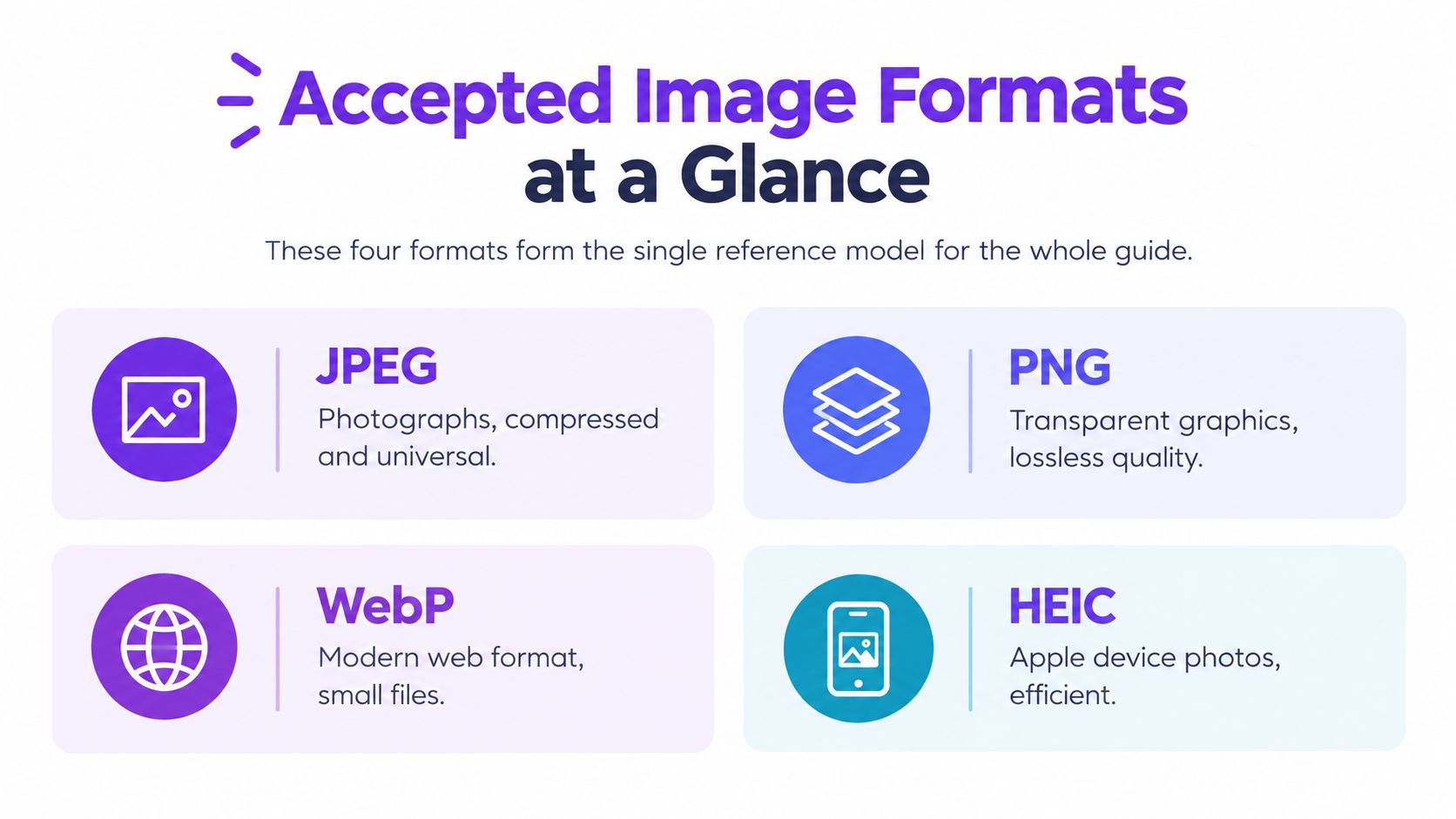
All four formats must meet the same 10MB ceiling and contain a still image. The distinction between raster and vector formats also matters. Raster files store pixels, which is what the detector analyzes, while SVG is a vector format and isn't part of this upload set. MDN's image-format guide describes this wider distinction and lists the common image formats supported across modern web platforms.
If your file is BMP, TIFF, RAW, SVG, or another unsupported type, convert it to JPEG or PNG before uploading. Choose the destination format based on the image's content, not merely on the original extension.
Working with JPEG Files
JPEG is the practical baseline for photographic images. Cameras, screenshots saved from many applications, downloaded images, and social exports commonly arrive as JPEG, and modern browsers decode it reliably. MDN identifies JPEG as currently the most popular image format, which explains why it remains a dependable choice for detector uploads.
JPEG uses lossy compression. That keeps photographs compact, but it can soften fine detail and introduce blocks or halos around text and hard edges. JPEG also doesn't preserve transparent backgrounds. A transparent graphic saved as JPEG will acquire a solid background during export.
For a clean upload, use the original JPEG or a single export from the source application. Re-saving the same file repeatedly in chat applications, editing tools, or social platforms can add new compression artifacts each time. Those changes may affect the visual evidence available to an image detector, especially around faces, text, edges, and generated details.
A JPEG is usually the right starting point for:
- Everyday photographs: Camera images and phone exports can be uploaded without changing formats.
- Downloaded web images: JPEG files from websites are already in a broadly interoperable format.
- Screenshots saved as JPEG: They remain usable, although PNG may preserve text and interface edges more cleanly.
For a deeper explanation of the visible effects created during re-saving, see this guide to image compression artifacts. If a JPEG is rejected, check both its actual file type and its size. Changing .tiff to .jpg in the filename won't perform a conversion.
Working with PNG Files
PNG is the better choice when pixel accuracy, transparency, or sharp edges matters. Its lossless compression preserves the stored pixel information, so screenshots, diagrams, text overlays, interface captures, and clean composites retain their structure without JPEG-style compression noise.
The trade-off is file size. A detailed PNG can be much larger than a visually similar JPEG, particularly when it contains a large canvas, transparency, or finely textured content. If a PNG is rejected for exceeding the limit, export a smaller copy instead of repeatedly changing the filename.
PNG uses the image/png MIME type. Transparent pixels are accepted, but transparency itself doesn't determine whether an image is human-created or AI-generated. The detector needs the visible raster content, so a transparent logo and a screenshot with a solid background follow the same upload process.
Use PNG when:
- Text must stay crisp: Screenshots and generated graphics with small lettering benefit from lossless storage.
- Edges carry meaning: Line art, diagrams, icons, and interface elements can lose clarity after lossy compression.
- Transparency is part of the source: Preserve the alpha channel in the upload copy when the composition depends on it.
If the file is too large, remove unnecessary metadata or export a smaller raster copy. Don't convert a detailed PNG to JPEG automatically when the sharp edges are the reason you're checking the image.
Working with WebP Files
WebP is a modern web format that many users encounter without deliberately choosing it. Websites, browser downloads, and platform exports can deliver WebP files, so a saved image may arrive with a .webp extension even when the original source was JPEG or PNG.
WebP supports both lossy and lossless compression, along with transparency. That means two WebP files can behave differently: one may be a compact photographic export, while another preserves sharper graphic detail. The MIME type is image/webp.
A still WebP can be analyzed normally. If the file is animated, the detector analyzes the first frame rather than treating the animation as a video. Some older desktop viewers may not preview WebP correctly, but a missing preview doesn't necessarily mean the file is invalid. Try the upload itself, or open it in a current browser.
Keep the original WebP when you may need to analyze the image again. Converting it to JPEG first introduces another encoding step and can alter edges, textures, and small details. Convert only when another application in your workflow doesn't accept WebP, or when you need a format that a particular editor handles more reliably.
Google's WebP documentation provides background on the format's browser support and compression behavior. For the detector, the practical rule is simple: upload the WebP directly when it meets the size and still-image requirements.
Working with HEIC Files
HEIC is the format most likely to create an unexpected upload problem. It commonly arrives from iPhones and iPads, where it can be the camera's default output. HEIC stores image data efficiently inside the HEIF container and uses HEVC-based compression, but many browsers and desktop applications don't decode it natively.
That creates an important distinction: a file can be a valid image on an Apple device and still fail in a browser-based workflow. Independent format guidance describes HEIC as efficient but less broadly compatible than JPEG, PNG, or WebP. If the detector can't decode the file in the current browser, it may show an unsupported-format error before analysis begins.
Create a JPEG or PNG copy when direct upload fails:
- On macOS: Open the HEIC file in Preview, choose Export, and select JPEG or PNG.
- On Windows: Install the HEIF Image Extensions from Microsoft if the system needs help opening the file, then export it through a compatible image application.
- On iOS or iPadOS: Use the Share sheet or Files workflow to create a JPEG copy before returning to the detector.
Keep the HEIC master separate from the converted upload copy. A conversion can change compression, metadata, color handling, or other source properties. For authenticity work, preserving the original gives you a reference if you later need to compare the converted image with the capture file.
A HEIC file may use image/heic or image/heif. If it still fails after conversion, check that the new file really is JPEG or PNG rather than a renamed HEIC container.
Understanding the 10MB Size Limit
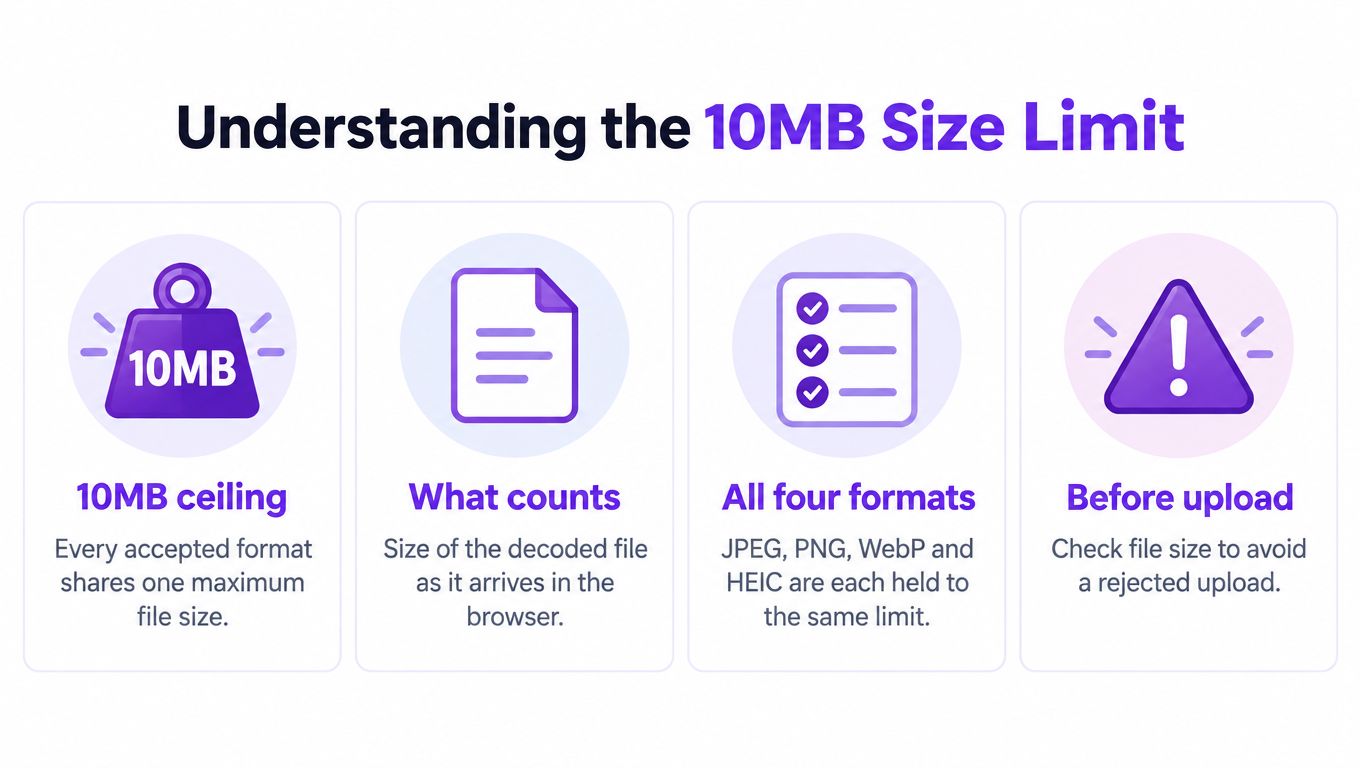
Every accepted format shares a 10MB maximum. The detector checks the file as it arrives in the browser, and processing can require the image to be decoded before analysis. A compressed file that looks small on disk may need more working memory when the browser opens it.
Metadata can also contribute to the file's size. EXIF information, embedded color profiles, and ICC tables may add bytes that aren't visible in the image itself. A full-resolution camera export can therefore exceed the limit even when the preview looks ordinary.
If the upload is rejected for size, make a new copy:
- Lower export quality: Use an image editor's export controls to reduce JPEG or WebP quality while keeping the image legible.
- Remove excess metadata: Strip camera metadata and unused color-profile information with a local image tool.
- Choose a suitable format: A photographic PNG may become smaller as JPEG or WebP, while a screenshot may remain clearer as PNG.
- Reduce dimensions: Export a smaller version when the original contains more detail than the detector needs to inspect.
Screenshots and resized phone images often fit more easily than large camera exports or scanned documents. Check the new file's properties before trying the upload again.
How to Upload Files by Drag and Drop
Open the detector page and locate the upload zone above the analysis area. Drag one image onto it. The dashed border indicates that the page has recognized the drop target.

The browser reads the file locally, checks its format and size, and then moves to analysis if both checks pass. The image bytes aren't sent to a remote server for storage, and the file isn't written to server storage as part of the upload. If the file fails validation, the interface should identify whether the format isn't supported or the file exceeds the size limit.
For older browsers or users who prefer a file picker, select the browse link below the drop zone. It opens the same local file selection process without requiring drag and drop. If privacy is part of your review process, this guide to how to protect your business data offers useful background on secure upload handling.
The video below shows the interaction in context.
Closing the tab releases the image from the page's working memory. The detector doesn't retain an upload history between sessions unless a separate product feature explicitly provides that behavior.
Quick Reference Table of Supported File Types
Use this table while the detector is open in another tab. The MIME value helps explain why a file picker or browser may identify a file differently from its visible extension.
| Format | MIME | Max Size | Best For | Convert With |
|---|---|---|---|---|
| JPEG | image/jpeg |
10MB | Everyday photographs and screenshots | Re-export from an image editor at a lower quality setting |
| PNG | image/png |
10MB | Transparency, sharp text, and clean graphics | Use a PNG-to-JPEG tool when transparency isn't needed |
| WebP | image/webp |
10MB | Modern web exports and compact downloads | Re-save as JPEG in an image editor if another tool rejects WebP |
| HEIC | image/heic, image/heif |
10MB | iPhone and iPad captures | Export as JPEG on the device or computer |
A conversion should create a new file. Don't overwrite the original when the image may be needed for later verification. If the converted copy remains too large, reduce its dimensions or export quality, then check the resulting file before uploading.
The table also highlights why “accepted” doesn't mean “identical.” JPEG, PNG, WebP, and HEIC preserve different combinations of detail, transparency, metadata, and compression behavior.
Format Choice and Detection Confidence
An accepted format gets the file into the analyzer, but it doesn't guarantee that every version carries the same evidence. Compression history matters. A PNG screenshot can preserve clean text and edges, while a JPEG that has been re-saved repeatedly may contain softened details and blocking around high-contrast areas.
WebP can provide a useful middle path, particularly when a smaller file is needed without immediately choosing a heavily compressed JPEG export. It can still lose detail under aggressive quality settings. HEIC can preserve substantial visual detail efficiently, but converting it multiple times can undermine that advantage.
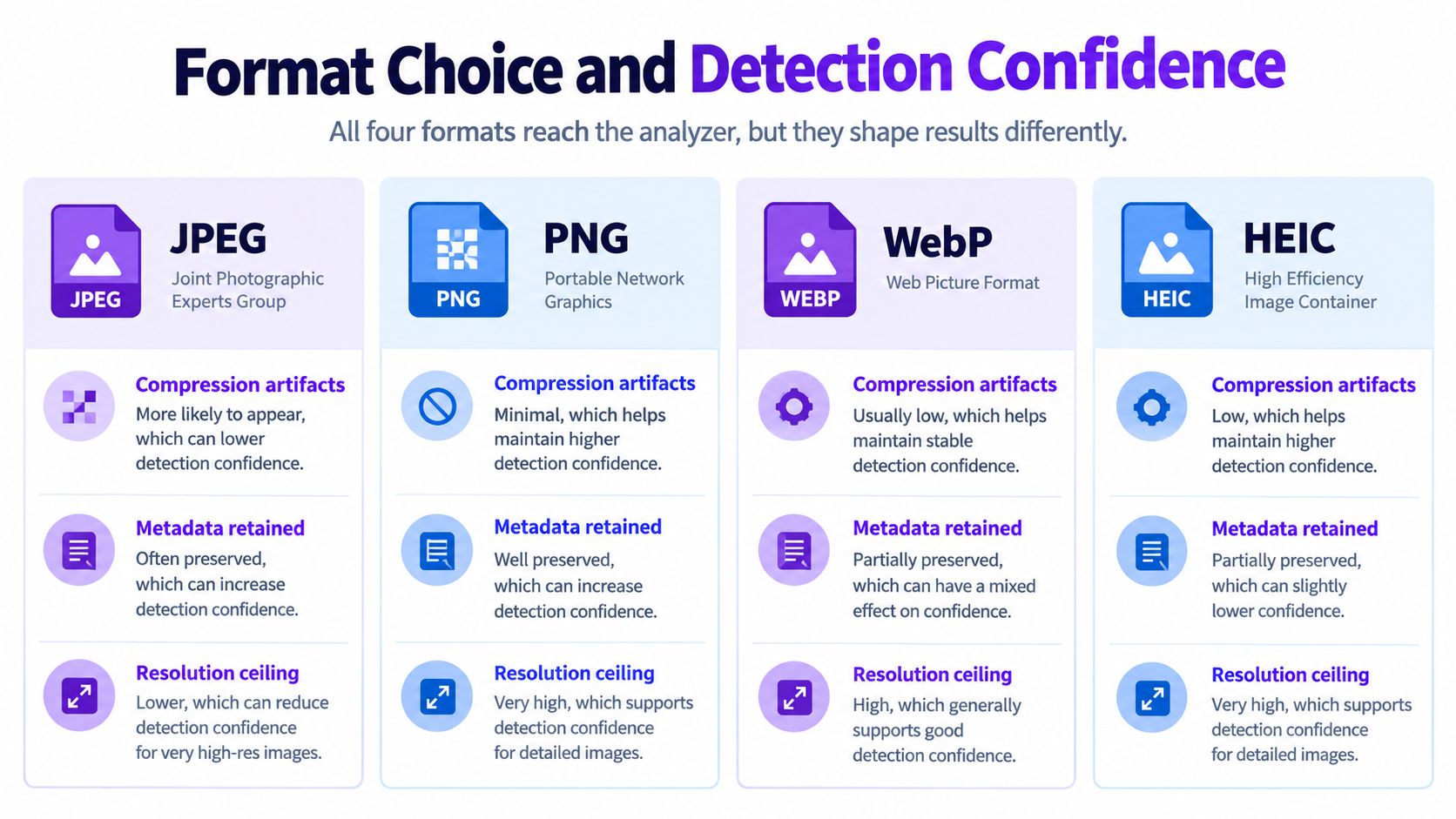
For important verification: Submit the least-compressed original available, or a single clean export that fits the upload limit.
Metadata, transparency, and resolution also shape what survives the conversion path. The format alone doesn't prove whether an image is authentic, and a detector's confidence can be affected by editing, platform recompression, cropping, and low-quality exports. Treat supported file types as an entry requirement, not a promise that every file has equal forensic value.
For a closer comparison of format characteristics, use this file format comparison guide. It helps separate upload compatibility from the quality of the evidence inside the file.
Converting Files and Troubleshooting Uploads
Most failed uploads have a short fix. Start with the exact error, then change only the relevant part of the file so you don't introduce unnecessary processing.
For HEIC, export a JPEG or PNG copy using Preview on macOS, a compatible Photos workflow on Windows, or the Files and Share tools on iOS. For an oversized file, open it in an image editor, reduce the image dimensions, remove excess metadata, or export it at a lower quality setting. A local converter is preferable when the image contains private, unpublished, or sensitive material.
If the extension appears correct but the detector still rejects the file, inspect the actual format. A file renamed from .tiff to .jpg is still TIFF. Open it in an application that identifies the container, then export it rather than renaming it.
Try these checks in order:
- Reload the page: A fresh browser session can clear a stalled local read.
- Test another supported image: This separates a file problem from a browser problem.
- Disable a page-specific blocker: Aggressive ad blockers or privacy extensions can interfere with file controls.
- Create a fresh copy: Export the image again instead of repeatedly retrying the same damaged file.
- Check the size after conversion: A new file may still exceed the limit.
If the page reports no image detected after a successful upload, use this troubleshooting guide for missing image files before changing the source unnecessarily.
Frequently Asked Questions About Supported File Types
Do I need an account to upload a supported file?
No. JPEG, PNG, WebP, and HEIC uploads can be submitted without signing in.
Is upload history saved?
No. Files are processed in real time and aren't written to server storage.
Can I upload several files at once?
The upload field can accept multiple supported files in one selection, with each image scored independently when the interface enables batch selection.
What if my file is under 10MB but is rejected?
Confirm that the extension matches the actual container, then reload the page and try a fresh export.
Do animated WebP files work?
The first frame is analyzed as a still image.
Is a PNG screenshot preferable to a re-encoded JPEG?
It can preserve sharper edges and text. Recompression may remove visual details that matter during analysis.
Why might HEIC need conversion?
HEIC compatibility varies across browsers and desktop applications. Converting it to JPEG or PNG creates a broadly readable raster file while preserving the original separately.
The AI Image Detector accepts JPEG, PNG, WebP, and HEIC files up to 10MB and analyzes them in real time with a privacy-first workflow. Before you upload, choose the cleanest supported copy, confirm its size, and visit AI Image Detector to check whether the image is likely human-created or AI-generated.