

A Practical Guide to Check Image Metadata on Any Device

Ever wondered what secrets are hiding inside your photos? The quickest way to start is often right on your desktop. Just right-click an image file and choose "Properties" on a Windows machine or "Get Info" if you're on a Mac. What you'll find is a trove of hidden data—often called EXIF, IPTC, or XMP—that can reveal everything from camera settings and creation dates to the exact GPS coordinates of where a photo was taken.
What Is Image Metadata and Why Does It Matter?
Think of the metadata tucked inside every digital photo as its digital fingerprint. This information is automatically embedded right into the image file the moment you press the shutter, and it can paint a surprisingly detailed picture of the photo's origin story.
Getting a handle on this data is more than just a technical exercise. For photographers, it’s an invaluable logbook for remembering the settings that made a great shot. For journalists and researchers, it’s often the very first step in authenticating a source. And for anyone who values their privacy, knowing what your photos are broadcasting to the world is an absolute must before you share them online.
The Core Types of Image Metadata
To really get what you're looking for, it helps to know that metadata isn't just one big blob of text. It's usually organized into three main standards, each with its own job.
Here’s a quick breakdown of what you'll encounter when you start digging into an image file.
| Metadata Type | Information Stored | Primary Use Case |
|---|---|---|
| EXIF (Exchangeable Image File Format) | Camera model, shutter speed, ISO, aperture, GPS data, date/time | Automatically logged by the camera to record the technical details of a shot. |
| IPTC (International Press Telecommunications Council) | Creator name, copyright details, keywords, captions, location info | Manually added for rights management, archiving, and providing context. |
| XMP (Extensible Metadata Platform) | Edit history, licensing rules, custom tags, creator information | A flexible, modern format for storing a wide range of administrative and creative data. |
These different types work together to create a full picture of an image's history and purpose.
The most common type you'll run into is EXIF, first introduced way back in 1995 to bring some order to the data digital cameras were producing. By 2010, its adoption was so widespread that over 90% of JPEG images contained this rich technical data. This standardization has been a game-changer for photographers and anyone managing large digital archives, as you can learn more about on Cloudinary.com.
Why Checking Metadata Is So Important
Beyond just satisfying your curiosity, reading an image's metadata has some serious real-world applications. In a world flooded with misinformation, it provides a crucial first layer of verification by helping you trace a photo back to its roots. This kind of analysis is a cornerstone of digital forensics, which is constantly dealing with the challenges in authenticating digital media.
By learning to read this data, you take control over the information your images share with the world. It’s a simple skill that empowers you to protect your privacy, verify content, and improve your creative work.
Ultimately, knowing your way around image metadata elevates you from being a passive scroller to someone who can critically assess the content they see and share every day.
Digging into Image Metadata on Your Desktop
While web and mobile apps are great for a quick look, your desktop is where the real deep-dive into metadata happens. This is where you go beyond a surface-level glance to extract the kind of granular detail that can verify an image's origin, solve technical problems, or even refine your creative process.
The tools already built into Windows and macOS are a fantastic starting point. They're perfect for getting a fast overview without having to install anything extra, making them the logical first step in any metadata investigation.
Using Your Computer’s Built-in Tools
If you're on a Windows PC, the process couldn't be simpler. Just right-click on any image file, head down to Properties, and then click on the Details tab. You'll immediately see a ton of information, from the exact date and time the photo was taken to camera settings like ISO speed and F-stop.
For Mac users, the path is similar. Right-click an image and select Get Info for the basics. But to really see what's going on, you'll want to open the image in the Preview app. From there, go to the menu bar, click Tools, and select Show Inspector. This opens up a far more detailed panel, breaking down the EXIF and IPTC data.
These native tools are perfect for answering everyday questions. For example, a photographer trying to recreate a specific long-exposure shot could use this to check the exact shutter speed they used months ago.
The catch? These built-in viewers have their limits. They often don't show every single metadata field, especially obscure tags or the detailed edit histories logged in XMP files.
When you need the full story—like for a digital forensics case or to verify a lens serial number for an insurance claim—it's time to bring in the specialized software.
Advanced Analysis with ExifTool
When you absolutely need to see everything, the undisputed champion is ExifTool. Developed by Phil Harvey, this free, open-source command-line tool is a powerhouse, capable of reading, writing, and manipulating metadata across a staggering number of file types. It might look a bit intimidating at first, but a few basic commands will unlock a level of detail you just can't get anywhere else.
Once you have it installed, just open your terminal or command prompt. The simplest way to use it is to type exiftool followed by a space, and then just drag and drop your image file right into the window.
You can find complete documentation and download links on the official ExifTool website.
A few practical commands will get you going right away:
- See everything:
exiftool your_image.jpg
This command dumps every single piece of metadata it can find, right into your terminal—from the camera's make and model to the specific firmware version it was running. - Zero in on location data:
exiftool -gps* your_image.jpg
This filters the output to show only GPS-related tags, instantly revealing the latitude and longitude where the photo was snapped (if that data was recorded). - Check for software edits:
exiftool -Software your_image.jpg
This is incredibly useful for spotting if an image has been run through programs like Adobe Photoshop or Lightroom, which can be a key clue when assessing authenticity.
The true power of ExifTool is its sheer completeness. It can pull out data points like shutter count, which is critical when evaluating a used camera's lifespan, or even reveal subtle changes made to a file over time.
Easier Viewing with Graphical Interfaces
Not a fan of the command line? No problem. Plenty of programs give you a friendly graphical user interface (GUI) to explore metadata without sacrificing depth. One of the best and most popular options is Adobe Bridge, which comes with Adobe Creative Cloud but is also available as a free standalone download.
Inside Bridge, you just click on an image, and the Metadata panel instantly fills up with neatly organized tabs for EXIF, IPTC, and more. It’s perfect for photographers and designers managing huge libraries, as it makes it easy to view, compare, and even batch-edit information like keywords and copyright notices. This visual approach helps you spot patterns, like quickly identifying all the photos you took with a specific lens.
How to View Photo Metadata on Mobile Devices

Since our smartphones are almost always our primary cameras, knowing how to check image metadata on the go is more important than ever. You might be a journalist verifying a source in the field or just someone who wants to make sure your location isn't attached to a photo before you share it. Luckily, your phone has the tools you need.
Accessing this hidden data is surprisingly simple on both iOS and Android, and you often don't need to install anything extra. These built-in features are perfect for a quick privacy check or just to get a peek at your camera settings.
Checking Metadata on an iPhone
Apple has made it incredibly easy to see basic EXIF data right from the native Photos app. This feature is a game-changer for quickly understanding the context behind a shot without any fuss.
Just open any photo in your library and look for the (i) icon—the "info" button—at the bottom of the screen. Tapping it pulls up a panel with all the key details.
- Date and Time: See the exact moment the photo was captured.
- Location Map: If location services were on, you'll see a small map pinpointing where the picture was taken.
- Camera Details: It shows the camera model (like iPhone 15 Pro) and technical specs like aperture, shutter speed, and ISO.
This built-in tool is perfect for everyday use, like confirming where a vacation photo was taken or checking the settings you used for a great portrait. For example, if you want to remember which lens on your Pro model you used for a specific shot, the info panel has your answer.
The native app is fantastic for the basics, but it has its limits. If you need to see more granular data—like copyright information or specific XMP tags—you'll need to turn to a specialized third-party app for a deeper dive.
Finding Metadata on Android Devices
Android users, especially those using Google Photos, have a similarly straightforward path to their image metadata. The process is almost identical to iOS and gives you immediate access to the most critical information hidden in your pictures.
In the Google Photos app, just open an image and swipe up or tap the three-dot menu icon. This brings up the details screen, where you'll find a ton of information.
- Date, Time, and Location: Just like on an iPhone, you get a clear view of when and where the photo was taken, complete with a map.
- File Information: This includes the filename, image size, and dimensions.
- Camera Settings: You'll find the device model, aperture, exposure time, ISO, and focal length.
This is incredibly useful in real-world scenarios. Before posting a picture of something for sale on a marketplace, you can quickly swipe up to ensure your home address isn't accidentally attached. That simple check can save you from sharing sensitive private information.
When You Need More Detail with Third-Party Apps
While the built-in viewers are great for a quick look, they don't show the whole story. Sometimes you need to dig deeper, and that’s where dedicated EXIF viewer apps come into play. These tools are built to parse and display every last piece of metadata a file contains.
Here are a few popular options for both platforms:
- EXIF Metadata (iOS): A powerful tool that displays extensive data and also lets you edit or remove it.
- Photo EXIF Editor (Android): This app gives you a detailed breakdown of all metadata tags and offers robust editing capabilities.
- Metapho (iOS): Known for its clean interface, it provides a deep look into your photo data and integrates smoothly with the Photos app.
These apps are essential for professionals or anyone with a serious interest in digital forensics. A photographer might use one to add copyright information right from their phone, while a fact-checker could use it to inspect software tags for signs of digital tampering.
This growing awareness of hidden data is critical. Studies show that roughly 45% of people who share photos online don't even realize their images contain EXIF data, which can include precise GPS coordinates. This has prompted a huge rise in the use of metadata tools, which saw a usage increase of over 35% in a single year as people become more conscious of their digital footprint.
You can discover more insights about photo metadata privacy at Pics.io. Being able to easily check image metadata on your phone is the first step toward taking control of your personal information.
Using Online Tools to Inspect Image Metadata
Sometimes you just need to check a photo's metadata quickly, without the hassle of downloading and installing software. This is where online viewers shine. They're fast, work straight from your browser, and are incredibly straightforward—perfect for a first-pass analysis of an image you just found or received.
You typically just upload the image file or, even better, paste in a URL. The tool does the heavy lifting, processing the file and spitting out a full report of all the embedded data—EXIF, IPTC, XMP, you name it. This is a huge time-saver, especially if you’re inspecting a photo from a messaging app and don't want to save it to your device first.
Top Online Metadata Viewers
Two of the most trusted and long-standing options out there are Jeffrey's Image Metadata Viewer and Metadata2Go. Both are free to use and pull an impressive amount of detail, often just as much as you'd get from dedicated desktop software.
So, which one should you use? It really depends on what you’re looking for.
- Jeffrey's Image Metadata Viewer: This one is a classic for a reason. It gives you a raw, unfiltered data dump of every single tag it finds. It’s not pretty, but it’s exhaustive. This is the tool I turn to for deep-dive investigations where I can't afford to miss a single thing.
- Metadata2Go: If you prefer a cleaner, more organized view, this is your best bet. It sorts the metadata into neat, collapsible sections (like EXIF, GPS, and XMP), making it much easier to find specific details quickly. It also handles a wider range of file types, which is a nice bonus.
Honestly, for most quick checks, either one will get the job done beautifully. It just comes down to whether you prefer a raw text file or a polished interface.
Here’s a look at the kind of detailed output you get from Jeffrey's viewer.
As you can see, it pulls everything—camera model, lens info, the exact second the shutter was pressed. This is the kind of granular detail that's invaluable when you're trying to verify a photo's origins.
A Word on Convenience vs. Privacy
Online viewers are incredibly handy, but you have to be mindful of privacy. When you upload a photo, you're sending it to a third-party server. While the reputable sites claim they don't store your images, the risk is never truly zero.
As a rule of thumb, I avoid uploading any photos containing sensitive or personal information. Think pictures of family, personal documents, or anything taken inside your home.
For anything that requires confidentiality, stick with offline desktop software. It's always the safer route. But for analyzing public photos or images without private details, the speed of online tools is tough to beat.
When Online Tools Are the Perfect Fit
The real magic of these web tools is their immediacy. Imagine a journalist on a tight deadline who gets a photo from an unverified source. Before they go down a rabbit hole of forensic analysis, they can just paste the image URL into a viewer for an instant snapshot.
This quick check can answer some critical questions right away:
- Does the
Softwaretag show it was opened in Adobe Photoshop? - Does the creation date line up with the event’s timeline?
- Are there GPS coordinates that match the reported location?
In just a few seconds, an online tool can provide the clues you need to decide if an image is credible or if it needs a much closer look. That makes them an essential part of any workflow that involves verifying digital images.
Taking Control: How to Remove Image Metadata and Protect Your Privacy
Once you get comfortable viewing image metadata, the next step is learning how to control it. Seeing what data is attached to your photos is one thing, but true privacy comes from deciding what information you’re willing to share. This process, often called "scrubbing" or "stripping," is a critical habit to develop before your images go public.
Think about it for a second. That great shot of your dog playing in the yard could contain embedded GPS coordinates, essentially broadcasting your home address to anyone who downloads the file. For photographers building a portfolio, parents sharing family photos, or anyone submitting images where anonymity is key, removing this data isn't just a good idea—it's essential.
The good news? You don't need to be a tech guru to do this. Most modern operating systems have powerful, user-friendly tools built right in to help you safeguard your privacy in just a few clicks.
Built-in Tools on Windows and macOS
For most day-to-day needs, the native tools on your computer are more than capable. They offer a straightforward way to strip out the most sensitive information without having to download a thing.
On a Windows PC, just find the image file, right-click it, and head to Properties. From there, click on the Details tab. You'll see a link at the bottom that says "Remove Properties and Personal Information." This gives you two simple options: create a clean copy of the image with everything stripped out, or pick and choose which specific details (like camera settings or GPS data) you want to remove from the original file.
Over on a Mac, the workflow is a little different but just as easy. Open your photo in the Preview app. In the menu bar, go to Tools and select Show Inspector. A window will pop up—look for the GPS tab (it might also be under a tab labeled "More Info" or "i"). If location data is present, you'll see a handy "Remove Location Info" button. One click, and the most compromising piece of metadata is gone.
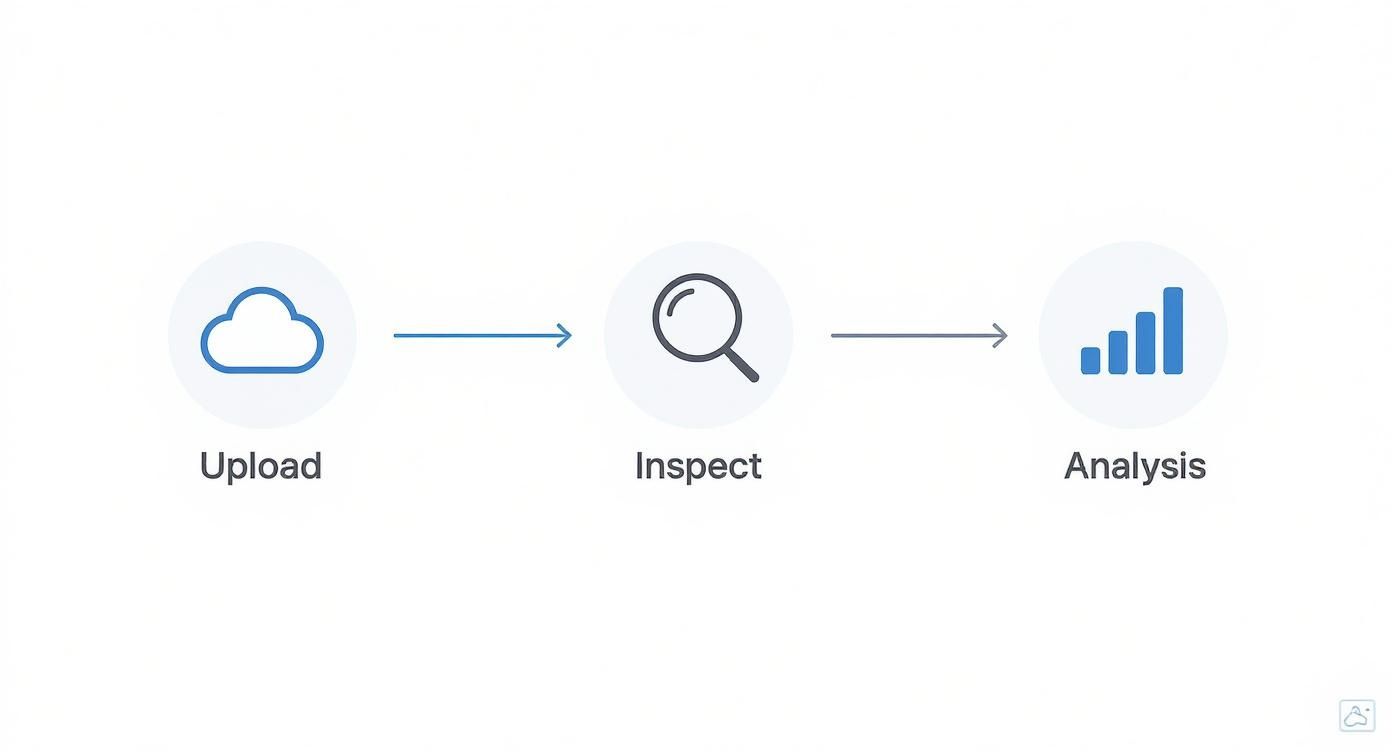
This simple workflow—upload, inspect, analyze—is the foundation of smart metadata management. It’s all about reviewing the data first before deciding what needs to be removed.
For Ultimate Control, Use ExifTool
When you need absolute, granular control over every last bit of metadata, nothing beats the command-line powerhouse ExifTool. It’s the go-to for professionals who need to be certain no stray data is left behind.
Here are a couple of my most-used commands for privacy:
- To wipe everything:
exiftool -all= your_image.jpg
This is the nuclear option. It strips every single metadata tag, leaving you with a completely clean slate. Don't worry, it automatically saves the original file with an_originalsuffix, so you always have a backup. - To remove only GPS data:
exiftool -gps:all= your_image.jpg
This command is my favorite for targeted removal. It gets rid of all location-based tags while keeping useful technical info like camera settings intact. It's a surgical strike on the biggest privacy risk.
Using a tool like ExifTool gives you total peace of mind. It's the preferred method for journalists, activists, and anyone who needs to guarantee anonymity when sharing images online. You're not just removing data; you're maintaining complete control over your digital footprint.
Managing metadata isn't just about privacy; it also ties into ownership and copyright. You can dive deeper into that topic with our guide on https://www.aiimagedetector.com/blog/how-to-check-if-a-image-is-copyrighted.
A Quick Look at Metadata Removal Tools
Different situations call for different tools. Here's a simple breakdown to help you choose the right method for your needs.
| Tool/Method | Platform | Ease of Use | Control Level (All vs. Selective) | Best For |
|---|---|---|---|---|
| Windows Properties | Windows | Very Easy | Selective or All | Quick, basic scrubbing for Windows users. |
| macOS Preview App | macOS | Very Easy | Selective (GPS only) | Instantly removing location data on a Mac. |
| ExifTool | Windows, macOS, Linux | Advanced | Complete (Selective or All) | Power users needing precise, batch control. |
| Mobile Apps (e.g., Metapho) | iOS, Android | Easy | Selective or All | Editing and removing data directly on your phone. |
| Online Tools | Web Browser | Easy | Usually All | One-off removals without installing software. |
This table shows there’s a solution for everyone, from the casual user to the security-conscious professional.
Managing Metadata on Your Phone and Social Media
Let’s be real—most of our photos are taken on our phones, so managing metadata on the go is crucial. Plenty of third-party apps, like Metapho on iOS or Photo EXIF Editor on Android, are fantastic for this. They let you view and remove data, often allowing you to save a "clean" copy directly to your camera roll before sharing.
It’s also smart to understand how social media platforms handle your data. Learning about optimizing export settings for image sharing can give you a leg up. While major sites like Instagram and X (formerly Twitter) typically strip GPS data automatically upon upload to protect users, you should never rely on them entirely.
The best practice is always to scrub sensitive data yourself before you upload. Taking that extra second ensures your privacy is always in your own hands.
How AI Images Are Changing the Metadata Game
The flood of AI-generated content is completely reshaping how we think about digital images, and metadata has become the bedrock of authenticity. As AI-created media gets scarily realistic, knowing how to check an image’s metadata is no longer a niche technical skill—it’s an essential part of figuring out what’s real online.
To get ahead of this, new standards are cropping up. Initiatives like the Coalition for Content Provenance and Authenticity (C2PA) are developing a kind of "digital nutrition label" for images. This system embeds cryptographic metadata right into the file, creating a secure, verifiable log of where the image came from and every change made to it.
Think of the C2PA standard as a transparent history of an image's life, from the moment it was created to the final version you see. For journalists, researchers, and anyone trying to sort fact from fiction, this is a massive step forward in fighting misinformation.
Finding AI Fingerprints in the Data
AI image generators are also starting to leave their own breadcrumbs in the metadata. When you dig into an image's XMP data, you might find tags that name the AI model used (like Midjourney or DALL-E) or even reveal pieces of the text prompt that created it.
Learning to spot these digital markers is a huge part of the modern toolkit to detect AI-generated images. These clues can be the fastest way to confirm your suspicions about an image's origin.
In this new environment, metadata is the digital signature. It gives us the context we desperately need to tell an authentic photo from a synthetic creation, helping us navigate the visual world with a bit more certainty.
The value of this data is hard to overstate. Even before the AI boom, studies showed that over 75% of images in media and e-commerce had descriptive IPTC metadata. On the security front, metadata analysis has played a key role in over 30% of certain US criminal investigations. As AI continues to advance, understanding how data is processed, as seen in AI search chunking strategies, including metadata handling, will be critical for anyone managing and verifying digital information.
Got Questions About Image Metadata? We’ve Got Answers.
Even after you've got the basics down, a few specific questions always seem to pop up. Let's tackle some of the most common ones people ask about checking, trusting, and handling image metadata.
Does Taking a Screenshot Get Rid of Metadata?
For the most part, yes. When you take a screenshot, you're not just copying an image; you're creating an entirely new one from scratch.
This new file gets its own basic metadata—like the date and time it was created—but it won’t carry over the rich EXIF data from the original photo. Think of it as a quick and dirty way to scrub an image, just be aware that you'll likely lose some image quality and resolution in the process.
Can People Fake or Edit Image Metadata?
Absolutely. It's surprisingly easy to do.
With powerful tools like ExifTool or even software like Adobe Bridge, anyone can dive in and change the data. They could alter the GPS coordinates to make a photo appear to be from somewhere else, backdate the creation timestamp, or even swap out the photographer’s name.
Metadata is a fantastic starting point for verification, but it's not foolproof. Always treat it as a valuable clue, not a guarantee of authenticity. In any serious investigation, it's just one piece of a much larger puzzle.
Do Social Media Platforms Keep My Photo's Metadata?
Most of them strip it out, at least publicly. When you upload a picture to platforms like Instagram or Facebook, they typically remove the most sensitive information to protect user privacy—especially GPS location tags.
But here's the catch: while the public can't see that data, the platform itself might store your original, unaltered file on its servers. The safest bet is to always take matters into your own hands and remove any sensitive information before you hit that upload button.
Gain confidence in the images you see online. AI Image Detector provides fast, accurate analysis to determine if a photo is human-created or AI-generated, helping you fight misinformation with every scan. Try it for free at https://aiimagedetector.com.