

How to Check Metadata of Photo on Any Device

Want to know the real story behind a photo? On a Windows PC, just right-click the image, select "Properties," and head to the "Details" tab. If you're on a Mac, right-click and choose "Get Info." This simple action pulls back the curtain on a photo's hidden data, often called EXIF, revealing everything from the camera used and its settings to the exact date and sometimes even the location where it was taken.
Why Photo Metadata Is Your Digital Detective

We're all swimming in a sea of images. In this reality, being able to check a photo's metadata is more than just a neat trick—it’s a critical skill. Every digital picture carries this invisible layer of information, a sort of digital fingerprint that tells the true story behind the pixels. It gives you clues about a photo's origin, its authenticity, and its history.
Imagine a dramatic photo goes viral, claiming to show a protest happening right now. A quick metadata check could easily reveal it was actually shot five years ago on a completely different continent. That's the power you have when you know where to look. It essentially turns you into a digital detective, equipped to sniff out fakes and verify what’s real.
The Building Blocks of Photo Data
To really get a handle on this, it helps to know what kinds of data you're looking for. There are three main types, each serving a unique purpose in telling an image's story.
- EXIF (Exchangeable Image File Format): This is the raw data your camera or smartphone automatically bakes into the file. Think of it as the technical blueprint: camera model, shutter speed, ISO, aperture, and often the GPS coordinates of where you were standing.
- IPTC (International Press Telecommunications Council): This data is usually added after the fact by a person, like a photographer or photo editor. It includes descriptive information like headlines, captions, keywords, and copyright details.
- XMP (Extensible Metadata Platform): Created by Adobe, XMP is a more modern and flexible format. It can hold all the EXIF and IPTC data, plus a whole lot more, like a detailed log of edits made in programs like Photoshop.
With a staggering 30 trillion photos projected to exist by 2030, the ability to sort fact from fiction is more crucial than ever. While the idea of logging photo details isn't new—photographers have been doing it since the film days—the current EXIF standard has been used in 99% of cameras since 1995. Plus, with about 70% of smartphone photos including GPS data since the iPhone 4, there's a mountain of information out there just waiting to be examined.
Metadata provides the context that transforms a simple image into a verifiable piece of evidence. It’s the first line of defense against digital manipulation and a powerful tool for anyone seeking the truth behind a picture.
Of course, checking metadata is just one piece of the puzzle. For a truly thorough investigation, you’ll want to pair it with other techniques. After you’ve looked at the timestamps and location, you might run the image through a tool to check images for authenticity and see if it was generated by AI or heavily manipulated. This layered approach creates a solid verification process, giving you the confidence that you have the full story.
Checking Photo Metadata on Your Desktop Computer

When you really need to dig into an image's history, your desktop computer is the best place to start. Both Windows and macOS have handy built-in tools for a quick metadata check, so you often don't need to install anything extra to get the basic story behind a photo.
Using Your Computer's Built-in Tools
If you're on a Windows machine, it couldn't be simpler. Just find the image file, right-click it, and select Properties. From there, click the Details tab. You'll see a neatly organized list of EXIF data—everything from the camera model and exposure settings to the exact date the picture was taken.
For Mac users, the process is just as straightforward. In Finder, right-click the image and choose Get Info. A small window will appear; look for the "More Info" section and expand it. While this view gives you the essentials like camera type and resolution, it's not the whole story.
To see more on a Mac, open the image with the Preview app. Go up to the Tools menu and select Show Inspector. Click the little info icon (ⓘ), then hit the "EXIF" tab. This is where you'll find the richer details, like the shutter speed, F-stop, and lens info.
When You Need Something More Powerful
The built-in viewers are great for a quick glance, but sometimes you need to bring in the heavy hitters. Dedicated third-party software is essential when you're dealing with a large number of images or need to perform a deep-dive analysis. These tools can batch process entire folders, let you edit specific metadata fields, and uncover data that the basic viewers miss.
Here are a couple of my go-to options for when the basics just won't cut it:
- Adobe Bridge: If you're already in the Adobe creative world, Bridge is a no-brainer. It's a fantastic digital asset manager that gives you incredibly detailed metadata panels. You can also use it to add your own keywords, ratings, and copyright information to photos in bulk, which is a huge time-saver.
- ExifTool: For the most demanding forensic work, ExifTool is the undisputed champion. It’s a command-line application, so there's no fancy graphical interface, but its power is absolutely unmatched. It can read, write, and edit metadata from almost any file type you can throw at it, making it perfect for scripting and complex investigations.
Running a quick command with ExifTool can reveal incredibly granular details that standard viewers hide, like file permissions, modification dates, and obscure camera settings.
Pro Tip for a Faster Workflow: You can actually customize your file explorer to show key metadata without opening anything. In Windows Explorer, just right-click the column headers (like Name or Date) and choose "More..." You can add columns for "Camera model," "Date taken," or "Dimensions." It’s a simple trick that lets you sort and scan a folder of images in seconds.
Ultimately, the right tool depends entirely on your goal. For a simple fact-check, your operating system has you covered. But for serious asset management or a deep investigation, a specialized program like Bridge or ExifTool gives you the power and control you need to uncover the complete history of an image.
Viewing Photo Metadata on Mobile Devices
Most of us use our phones as our go-to cameras, so being able to check a photo's metadata right from our devices is a must. Both iOS and Android have simple, built-in tools that are perfect for a quick glance at the basics.
But let’s be honest, these native viewers barely scratch the surface. They’ll show you the date, time, and maybe a location pin, but they leave out the really interesting stuff—the camera settings, the lens used, or whether the image was touched up in editing software. For that deeper dive, you'll need a dedicated app.
What Your Phone Shows You Natively
Getting to the metadata on an iPhone couldn't be easier. Just open a picture in your Photos app, swipe up, and you’ll see the basic details right there: date, time, location on a map, and the device it was shot on, like "iPhone 15 Pro."
Android users have it just as easy in Google Photos. Open your image, tap the three-dot menu, and the details pop up. You'll get the file name, timestamp, and some core camera info. It’s handy, for sure, but it’s designed for casual viewing, not serious inspection.
The scale of mobile photography is mind-boggling. Projections show we'll take 2.1 trillion photos next year, and a staggering 94% of them will come from smartphones. That works out to around 5.3 billion photos every single day. With that volume, metadata isn't just a curiosity; it's essential for managing and verifying what we see. You can dig into more of these photography trends at Phototrend.
Why a Dedicated App is a Game-Changer
When you really want to know a photo's full story, a specialized app is the only way to go. These tools unlock the complete EXIF data, showing you everything from the F-stop and ISO to the lens model and shutter speed. Even better, many of them let you edit or strip this data out—a critical step for protecting your privacy before you post an image online.
Think about it: an app like Metapho can instantly tell you if a photo was run through Adobe Lightroom, a clue the native iOS viewer would completely miss.
Choosing a dedicated app gives you granular control. It turns your phone from a simple photo viewer into a powerful tool for inspecting, verifying, and managing the invisible data that travels with every image you capture or receive.
Top Mobile Apps for Viewing Photo Metadata
Diving into the app store can be overwhelming, so I've put together a quick comparison of some of the best mobile apps out there. Whether you're on iOS or Android, these tools will help you go way beyond the basics to view, edit, and manage your photo's EXIF data on the go.
| App Name | Platform | Key Features | Best For |
|---|---|---|---|
| Metapho | iOS | Detailed EXIF view, location data removal, and an extension for the Photos app. | iPhone users wanting a seamless, powerful viewer. |
| Photo EXIF Editor | Android | Allows viewing, editing, and removing EXIF data in bulk from multiple photos. | Android users needing to manage and edit metadata. |
| The Photo Investigator | iOS | Focuses on deep data analysis, including SHA hashes and extensive tag viewing. | Verifying image authenticity and forensic analysis. |
| EXIF Pro | Android | Clean interface that displays over 100 EXIF tags and supports various formats. | Photographers wanting comprehensive technical data. |
Ultimately, the right app depends on what you need to do. For quick privacy scrubs or just satisfying your curiosity, any of these will work beautifully. But for serious verification work, a tool that shows you everything is indispensable.
Decoding the Data in Your Photos
To really understand the story behind a photograph, you need to dig into its metadata. Think of these data fields less like technical jargon and more like forensic clues that help you piece together an image's entire history. Knowing what to look for is the key to moving from just seeing the data to actually interpreting it.
This information usually falls into a few practical buckets, with each one giving you a different angle for your investigation.
Camera and Settings
This group of data tells you exactly how the photo was taken. It’s the image's technical DNA, spelling out the camera make and model (like a Canon EOS R5 or an Apple iPhone 15), the lens that was used, and the precise settings the photographer dialed in.
Here are a few key fields you’ll run into constantly:
- F-stop (Aperture): This controls how much light hit the sensor. A low number, say f/1.8, creates that blurry background effect you see in portraits.
- ISO: This is all about the camera's sensitivity to light. Higher ISO values are a must for dark scenes, but they often introduce a grainy texture called "noise."
- Shutter Speed: This is the fraction of a second the camera's shutter was open. A super-fast speed like 1/1000s will freeze motion in its tracks, while a slower speed creates artistic motion blur.
These settings are powerful clues. For example, if you have a photo of a speeding race car that's perfectly sharp, you’d expect to see a very high shutter speed in the metadata. If you don't, that’s a major red flag.
The flowchart below gives you a simple, visual guide for finding this data on your phone without needing special software.
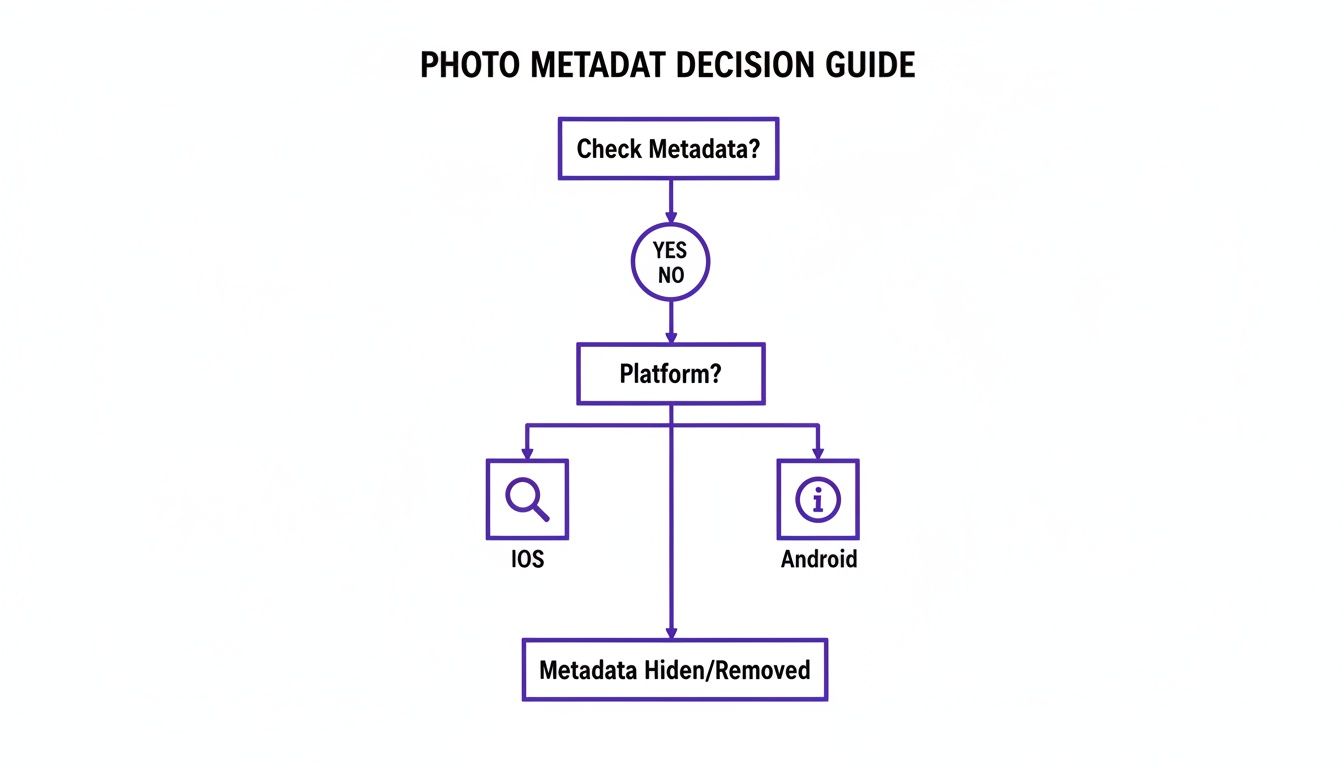
This decision tree shows the first steps for getting to an image's details natively on iOS and Android, which is often all you need to get started.
Time and Location
This category is often the most critical for fact-checking, as it pins the photo to a specific moment and place. The GPS Coordinates are pretty straightforward, but the timestamp deserves a closer look.
Always, and I mean always, look for the DateTimeOriginal tag. This is the exact moment the shutter was pressed, recorded directly by the camera. It’s far more trustworthy than the file’s "Date Modified" or "Date Created" fields, which change anytime you copy, move, or edit the file. If those timestamps don't line up, it’s a big warning sign that something has been messed with.
Essential EXIF Tags and Their Meaning
To get a better handle on this, let's break down some of the most important metadata tags you'll encounter. Think of this table as your cheat sheet for decoding an image's backstory.
| Metadata Tag | What It Means | Why It Matters for Verification |
|---|---|---|
| Make/Model | The manufacturer and specific model of the camera or phone used. | Does the camera model match the quality and type of photo? A high-end DSLR tag on a blurry, low-res image is suspicious. |
| DateTimeOriginal | The exact date and time the photo was taken, as recorded by the camera. | This is the most reliable timestamp. If it clashes with the event's known time, the photo's context is questionable. |
| GPSLatitude/Longitude | The precise geographic coordinates where the photo was captured. | Crucial for confirming location. If a photo claims to be from Paris but the GPS points to Chicago, you've found a problem. |
| Software | The program used to edit or process the image (e.g., Adobe Photoshop, GIMP). | Its presence is a dead giveaway that the photo is not the original. This tag tells you the image has been altered. |
| Shutter Speed | How long the camera's shutter was open, measured in fractions of a second. | Helps verify motion. A photo of a hummingbird frozen mid-flight must have a very fast shutter speed. |
| F-Stop/Aperture | The size of the lens opening, which controls depth of field. | Can you match the visual depth of field (blurry vs. sharp background) with the F-stop value? |
Understanding these tags is a fundamental skill for anyone serious about image verification. They provide a solid, data-driven foundation for your analysis.
Content and Copyright
This final bucket holds information added after the fact, either by the photographer or an editor. It gives you more context about the photo’s subject and who owns it.
- Keywords: Tags that describe what’s in the image, like "protest," "city hall," or "sunset."
- Creator/Author: This field should contain the photographer's name.
- Copyright Notice: Specifies legal ownership and usage rights for the image.
The evolution of these standards mirrors the explosive growth of the digital photography market, which was valued at $55.74 billion and is projected to climb to $70.95 billion by 2029. Back in the early 2000s, we mostly just had basic EXIF data. Now, we have rich IPTC fields, which are used by an estimated 85% of news agencies to manage their media assets. You can dig deeper into these digital photography market trends from Research and Markets.
A crucial red flag to watch for is the Software tag. If it lists "Adobe Photoshop" or another editor, you know the original image has been modified. This doesn't automatically mean it's fake, but it confirms the photo is no longer in its original state.
When you see signs of alteration, it’s time to bring in other verification methods. Our guide on how to check if a photo is real walks you through additional techniques to round out your investigation.
Managing Your Metadata to Protect Privacy

The photos you share online often tell a much deeper story than you realize. Hidden within each image is a trail of data that can reveal sensitive personal information, turning a simple vacation picture into a map of your private life.
Imagine posting a photo from your favorite neighborhood cafe. Without you knowing, the geotag embedded in the metadata could pinpoint your exact location, revealing your daily routines to anyone who knows how to look. It’s a sobering thought.
This is precisely why taking control of your photo metadata is such a crucial step in protecting your privacy online. Before you upload anything, it’s smart to get into the habit of stripping out potentially revealing details. The good news? You don't need any fancy software to do it.
Removing Metadata on Desktops
Your computer already has the basic tools you need to scrub this sensitive information. The process is surprisingly straightforward and only takes a few seconds once you know where to look.
- On Windows: Just right-click the photo file, choose Properties, and navigate to the Details tab. At the bottom, you'll find a link that says "Remove Properties and Personal Information." This will let you create a clean copy of the image with all possible metadata removed.
- On macOS: The steps are a little different. Open your image in the Preview app, head to the Tools menu, and select Show Inspector. From there, click the GPS tab and hit "Remove Location Info." While this handles geotags, you might want a third-party app like ImageOptim if you’re looking to strip every last bit of data.
Stripping metadata before you share is the digital equivalent of shredding a personal document before throwing it away. It’s a simple, proactive step that prevents your private data from falling into the wrong hands.
How Social Media Handles Your Data
It’s also helpful to know what happens to your data when you upload it. Most major social media sites, like Instagram and X (formerly Twitter), automatically remove the bulk of EXIF data from images to protect user privacy.
But you shouldn't rely solely on them.
The best practice is always to remove the data yourself before it ever leaves your computer. This approach ensures you maintain complete control over your personal information, no matter how a platform's policies might change down the line. Managing this data is also a cornerstone of good digital asset management. Knowing what’s inside your files helps a lot, a topic you can explore further with these tips on how to organize digital photos.
For a more detailed walkthrough, our guide on https://www.aiimagedetector.com/blog/how-to-check-metadata-of-an-image provides additional context and steps.
Common Questions About Photo Metadata
Once you start digging into photo metadata, a few key questions always seem to pop up. Let's tackle some of the most common ones I hear.
Can Photo Metadata Be Faked or Altered?
Yes, absolutely. While metadata is a fantastic tool for verification, you should never treat it as gospel. It can be changed, and often, it's surprisingly easy to do.
Tools like ExifTool or Adobe Bridge give anyone the power to edit, overwrite, or completely wipe metadata. A savvy user can easily alter timestamps to fit a certain story, scrub the original camera details, or even plant fake GPS coordinates to throw someone off the trail. This is precisely why you need to approach metadata with a healthy dose of skepticism.
My rule of thumb: Treat metadata as one clue in a larger investigation, not the final answer. Always look for contradictions and combine your findings with other verification techniques.
For example, if the data says a photo was shot on a high-end professional DSLR but the image itself is grainy and low-quality, that's a huge red flag. For any serious fact-checking, metadata is your starting point, never your final destination.
Will I Lose Image Quality if I Remove Metadata?
Nope, not at all. Removing metadata has zero effect on how the image actually looks.
The metadata is stored in a completely separate, non-visual part of the file. It's just text. The pixel data—the bits that create the actual picture you see—remains untouched. When you use a tool to strip this info, you're only deleting those text logs. The photo’s resolution, colors, and sharpness stay exactly the same. The only thing you'll notice is a slightly smaller file size.
What Is the Difference Between EXIF, IPTC, and XMP?
These are just three different standards for storing information in an image file, each with a different job. Think of them as different sections of a photo's official record.
EXIF (Exchangeable Image File Format): This is the technical stuff automatically captured by your camera or phone. It’s all about how the photo was taken: shutter speed, ISO, aperture, focal length, and often, the GPS location.
IPTC (International Press Telecommunications Council): This part is usually added by a human after the fact. It describes what the photo is about, with details like captions, keywords, location names, and copyright information. It's the standard for photojournalists.
XMP (Extensible Metadata Platform): Developed by Adobe, XMP is the most flexible of the three. It can store all the EXIF and IPTC data, plus a whole lot more, like a detailed history of every edit made in Photoshop or Lightroom.
Most modern metadata viewers can read all three, giving you the full story behind an image.
Sometimes, metadata just isn't enough, especially when you suspect a photo was created by AI. That's when you need a tool that can spot the subtle digital fingerprints AI leaves behind. The AI Image Detector offers a quick, reliable analysis to help you tell the difference between a human photo and an AI-generated one. You can get a free analysis and fight misinformation with confidence.
