

Bing Images Search API: Your Guide to Implementing bing images search api

The Bing Images Search API is your direct line to Bing's enormous index of high-quality web images. Part of Microsoft's Azure Cognitive Services, it lets you programmatically search for, filter, and pull images and their metadata right into your own applications. It's the key to building any service that needs rich, dynamic visual content.
What Is the Bing Images Search API?
Think of the Bing Images Search API as a way to embed Bing's powerful image search engine directly into your code. Instead of a user opening a browser, your application sends an HTTP request to the API. In return, you get a clean, structured JSON response packed with image URLs, thumbnails, dimensions, and other useful metadata. This approach unlocks countless ways to automate and enhance how your app handles visual content.

Bing's search platform is no small player. After integrating GPT-4, it blew past 100 million daily active users in March 2023. By May 2024, its global search market share had climbed to 3.64%. This growth means the API is tapping into a massive and constantly refreshed index, making it a vital tool for all kinds of modern workflows—like a newsroom trying to flag AI-generated images or a school verifying student submissions. For a deeper dive, you can explore more on Bing's search and usage data.
Core Functions and Use Cases
The API is much more than a simple keyword search. It gives you the tools to build incredibly specific queries to get exactly the images you need.
Here are some of its core capabilities:
- Advanced Filtering: Zero in on what you're looking for. You can filter results by size (small, medium, large), dominant color, license type (like Creative Commons), image type (photo, clipart, line drawing), and even how recently the image was discovered (day, week, or month).
- Metadata Retrieval: Every image result comes loaded with useful data. You get the
contentUrlfor the full-size image, athumbnailUrl, thehostPageUrlwhere it was found, andinsightsMetadatafor deeper analysis. This is perfect for attribution, content verification, or even building a reverse image search feature. - Trending Images: A special endpoint lets you tap into what's currently popular. You can see which images are trending in different markets, which is a great feature for content discovery platforms or social media management tools.
How to Set Up Your API Access and Authentication
Before you can make your first call to the Bing Images Search API, you'll need to get your credentials sorted out. This whole process happens inside Microsoft Azure, which is where you'll manage your access, grab your keys, and keep an eye on usage.
The Bing Search APIs, including the one for images, are all bundled under the Azure Cognitive Services umbrella. So, the first thing you absolutely need is an active Azure account. If you're new to the platform, you can sign up for a free account that usually includes a complimentary tier, which is perfect for getting your feet wet during development and testing.
With your Azure account ready, it's time to create the specific resource for the API.
Creating Your Bing Search Resource
Head over to the Azure portal and simply search for "Bing Search v7". This is the all-in-one resource that gives you access to web, image, news, and video search under a single subscription, which keeps things nice and simple.
From there, just follow the prompts to create a new instance. You'll be asked to configure a few things:
- Subscription: You need to link the resource to your Azure subscription for billing purposes.
- Resource group: Think of this as a folder for your Azure projects. You can either create a new one or add this resource to an existing group to stay organized.
- Pricing tier: Pick a plan that makes sense for how many calls you expect to make. There's almost always a free tier available, which is great for just starting out.
The resource should deploy in a minute or two. Once it's ready, you can jump into its management dashboard.
Finding and Managing Your API Keys
Authentication for the Bing Images Search API is handled with a subscription key. To find yours, navigate to the "Keys and Endpoint" section of the Bing Search resource you just created in the Azure portal.
You'll notice Azure gives you two separate keys: KEY 1 and KEY 2. This is a great security feature that allows for key rotation without any service interruption. The idea is that you can use one key in your live application while you regenerate the other, keeping your credentials secure without causing any downtime.
Security Tip: Treat these keys like passwords. Never, ever expose them in client-side code or check them into a public Git repository. The best practice is to store them as environment variables or use a dedicated secret management service.
Every single request you send to the API must include one of these keys in the Ocp-Apim-Subscription-Key HTTP header. Get that right, and you're ready to start searching.
Getting to Know the Core API Endpoints and Parameters
The Bing Images Search API is built around a few specific endpoints, and getting a handle on them is the first step to making effective queries. Each endpoint has a different job, whether it's searching for images, checking what's trending, or pulling details for a single image. Your choice dictates what the API will do.
For most developers, the /images/search endpoint is where the action is. This is your go-to for running keyword-based searches against Bing's massive image index. While you can send a simple query, its real power comes from the long list of parameters you can use to filter and refine your results down to exactly what you need.
The Primary Images Search Endpoint
Think of /images/search as the main gateway to finding visual content. At its most basic, a request to this endpoint only needs the q (query) parameter to work. But what makes it so useful is the huge variety of optional parameters that let you dial in the results with precision.
These filters give you fine-grained control. You can set how many results you want back, page through them, and filter by all sorts of image attributes like size, color, aspect ratio, and even licensing. As the official Microsoft documentation puts it, this endpoint is designed to "scour the web for images" with speed and control. This makes it perfect for applications that need to, for example, grab images and quickly pass them to an AI image detector for verification. You can find out more about what's possible by exploring the capabilities of the Bing Images API.
Key API Request Parameters
To get the most out of /images/search, you'll need to know which levers to pull. The table below breaks down the most common parameters you'll be using to build your API calls.
| Parameter | Description | Data Type | Example Value |
|---|---|---|---|
q |
The search query itself. This is the only mandatory parameter. Make sure it's URL-encoded. | String | red+sports+car |
count |
The number of image results to return in the response. The maximum is 150. | Integer | 50 |
offset |
Used for pagination. It tells the API how many results to skip before returning the list. | Integer | 50 |
mkt |
The market where the results come from. This is key for localizing searches. | String | en-US |
safeSearch |
Filters images for adult content. Options are Off, Moderate, or Strict. |
String | Strict |
These parameters form the backbone of most image search requests. Mastering them is essential for controlling the flow and content of the data you receive.
Advanced Filtering Parameters
Once you have the basics down, you can start using the advanced filters to narrow your search with some serious detail. This is where the Bing Images Search API really shines, letting you build some incredibly specific queries.
For instance, you could search for large, transparent, Creative Commons-licensed clipart of a "rocket ship" that Bing has discovered in the last month. You can do all of that in a single API call by combining the right parameters.
Here are a few of the most powerful advanced filters at your disposal:
imageType: Lets you filter by the style of the image. You can specifyPhoto,Clipart,Line, or evenTransparent.license: This is crucial for finding images you can actually use. You can filter for licenses likePublic,Share,ShareCommercially, or just stick withAll(the default).size: You can ask for a general size likeSmall,Medium, orLarge. If you need more control, you can use theheightandwidthparameters to specify exact dimensions.color: Perfect for finding images with a certain aesthetic. You can filter for a dominant color likeBlack,Blue, orYellow, or simply requestColorOnlyorMonochromeimages.freshness: This limits your results to images discovered by Bing recently. Your options areDay,Week, orMonth.
Making API Requests: Code Examples
Alright, you've got your API key and you know the endpoints. Now for the fun part: actually making some requests. Let's walk through a few practical, ready-to-use code examples for hitting the Bing Images Search API. I'll cover Python, JavaScript (specifically Node.js), and cURL to give you a solid starting point, no matter your tech stack.
The core idea is the same in every example. You build the request URL, tack on your query parameters, and—most importantly—pass your Ocp-Apim-Subscription-Key in the header to authenticate. Feel free to copy and paste these snippets directly into your project to get things moving.
Python Example with the Requests Library
Python is a go-to for many developers working with APIs, thanks to its clean syntax and fantastic libraries like requests. Here’s how you can run a simple search for "modern architecture."
First, make sure you have the requests library installed. If not, just run: pip install requests.
import requests
import json
Replace with your actual subscription key and endpoint
subscription_key = "YOUR_SUBSCRIPTION_KEY"
endpoint = "https://api.bing.microsoft.com/v7.0/images/search"
Your search term
query = "modern architecture"
Construct the request
headers = {'Ocp-Apim-Subscription-Key': subscription_key}
params = {'q': query, 'count': 10, 'mkt': 'en-US'}
try:
response = requests.get(endpoint, headers=headers, params=params)
response.raise_for_status() # This will raise an HTTPError for bad responses (4xx or 5xx)
print(json.dumps(response.json(), indent=4))
except Exception as ex:
raise ex
This script fires off a GET request and then pretty-prints the JSON response. From there, you can easily start parsing out image URLs, thumbnails, and other metadata for your application.
JavaScript Example with Node.js and Axios
If you're working in a server-side JavaScript environment, Axios is a hugely popular, promise-based HTTP client that makes API calls a breeze. Here’s the same search, but this time in a Node.js script.
You'll need to install axios in your project first: npm install axios.
const axios = require('axios');
// Don't forget to replace with your actual key!
const subscriptionKey = 'YOUR_SUBSCRIPTION_KEY';
const endpoint = 'https://api.bing.microsoft.com/v7.0/images/search';
const params = {
q: 'modern architecture',
count: 10,
mkt: 'en-US'
};
const options = {
headers: {
'Ocp-Apim-Subscription-Key': subscriptionKey
},
params: params
};
axios.get(endpoint, options)
.then(response => {
console.log(JSON.stringify(response.data, null, 2));
})
.catch(error => {
console.error('Error making the API request:', error.message);
});
This snippet works asynchronously. It logs the data when the request succeeds and catches any errors that might pop up, giving you a clean way to handle the API interaction.
The Universal cURL Example
Sometimes you just want to test an endpoint quickly from your terminal or whip up a shell script. For that, cURL is your best friend. This command runs a more complex search, looking for large, transparent photos.
Heads up: Make sure to replace
YOUR_SUBSCRIPTION_KEYwith your real key before running this. It's also a good habit to URL-encode your query, especially if it contains spaces or special characters.
curl -H "Ocp-Apim-Subscription-Key: YOUR_SUBSCRIPTION_KEY"
"https://api.bing.microsoft.com/v7.0/images/search?q=space+nebula&count=5&imageType=Transparent&size=Large"
This one-liner shows just how powerful combining parameters can be. We're searching for "space nebula," asking for 5 results (count=5), demanding an imageType of Transparent, and filtering for a size of Large. These examples should give you a solid foundation for plugging the Bing Images Search API into just about anything you're building.
Parsing the API Response Structure
Once you send a successful request to the Bing Images Search API, you'll get back a JSON object filled with all the data you need. Getting a handle on this structure is the key to programmatically pulling out image URLs, thumbnails, and other metadata for your application. Thankfully, the response is laid out logically, making it straightforward to parse in any programming language.
The top level of the JSON response contains a few high-level fields that give you context for the entire result set. You'll see a _type field, which will typically be Images, confirming you've received the image results you asked for. There's also webSearchUrl, a handy link that takes you directly to the Bing.com search results page for your query.
But the real meat of the response is inside the value field. This is an array of JSON objects, and each object in that array represents a single image result. Most of your code will focus on iterating through this array to work with individual images.
Deconstructing an Individual Image Object
Each object inside the value array is packed with details about one specific image. By extracting this data, you can display the images, give proper credit, and provide your users with helpful context. It’s best to think of each object as a complete profile for a single search result.
Here are the most important properties you’ll be working with for each image:
name: This is the display name or title for the image, usually pulled from the source page’s title tag.contentUrl: The direct link to the full-resolution image file. This is the URL you’ll use to actually display the image in your app.hostPageUrl: The URL of the webpage where the image was originally discovered. This is crucial for attribution and letting users visit the source.thumbnailUrl: A URL for a smaller, lower-resolution version of the image—perfect for building fast-loading galleries or preview grids.width&height: The dimensions of the full-size image in pixels, which is incredibly useful for calculating layouts and aspect ratios.insightsMetadata: A really powerful object containing extra data. It includes animageInsightsTokenfor reverse image searches and metadata about shopping sources or visually similar images.
For developers building verification tools,
insightsMetadatais a goldmine. It can show how an image has propagated across the web, which is a big step in identifying potential misinformation. To dig even deeper, you can also check image metadata embedded within the file itself for more clues.
Key Fields in the JSON Response
To help you get started with parsing, here’s a quick-reference table that breaks down the most important fields you’ll find in a typical response from the Bing Images Search API.
| JSON Field | Description | Example Data |
|---|---|---|
_type |
Identifies the response type. | "Images" |
webSearchUrl |
A URL to the Bing.com results page. | "https://www.bing.com/images/search?q=..." |
value |
An array of image objects. | [ { "name": "...", "contentUrl": "..." } ] |
name |
The title of a single image result. | "Modern building exterior" |
contentUrl |
Direct link to the full-size image. | "https://example.com/image.jpg" |
hostPageUrl |
The source webpage of the image. | "https://sourcewebsite.com/article" |
thumbnailUrl |
A link to the image's thumbnail. | "https://.../thumbnail.jpg" |
Familiarizing yourself with these fields will make it much easier to integrate the API's rich image data into your projects.
Building an Automated Image Verification Workflow
The real magic of the Bing Images Search API happens when you hook it into other smart systems. By pairing it with an AI image detector, you can create some seriously powerful, automated workflows for verifying image authenticity at scale. This is a game-changer for newsrooms, trust and safety teams, or academic institutions who need to know if an image is legit. We're moving past simple search here and into full-on digital investigation.
Think about a fact-checker who gets a compelling photo from a supposed breaking news story. Before they push it live, they have to ask: is this really from today's event, or is it an old photo being passed off as new to spread misinformation? An automated workflow can deliver that answer in seconds, not hours.
This kind of setup turns a manual, time-consuming chore into a swift, data-backed operation. When you automate the initial grunt work of verification, your human experts can save their energy for the most complex and subtle cases. It completely changes the speed of the fact-checking cycle.
A Step-by-Step Verification Process
A solid workflow is all about combining the API's massive search reach with an AI detector's analytical depth. The basic idea is to pull in visually similar images and dig into their history to build a timeline and context for the image you're investigating.
Here’s how a typical workflow looks:
- Kick off a Search with the Image: It all starts with a reverse image search. You'll use the
insightsTokenfrom an initial lookup to hit the/images/detailsendpoint, which is designed to find visually similar images from all over the web. For a deeper dive on this technique, check out our guide on how to perform an https://www.aiimagedetector.com/blog/ai-reverse-image-search. - Dig into the API Response Metadata: Next, your system will need to parse the JSON response from the API, zeroing in on the metadata for each result. The two most critical data points here are the
hostPageUrl(the page where the image lives) and itsdatePublished. - Check Against Trusted Sources: The workflow then checks if the
hostPageUrlbelongs to a known, credible source like a major news outlet. If you find the image on a reputable site with a publication date that lines up with the event, that’s a huge plus for its credibility. - Send the Results to an AI Image Detector: Finally, the original image and any key findings get passed to an AI image detector. This tool is built to spot the subtle artifacts, weird lighting, and other giveaways that an image has been digitally altered or generated by AI.
This diagram breaks down how you'd parse the API's response to get the data you need for a workflow like this.
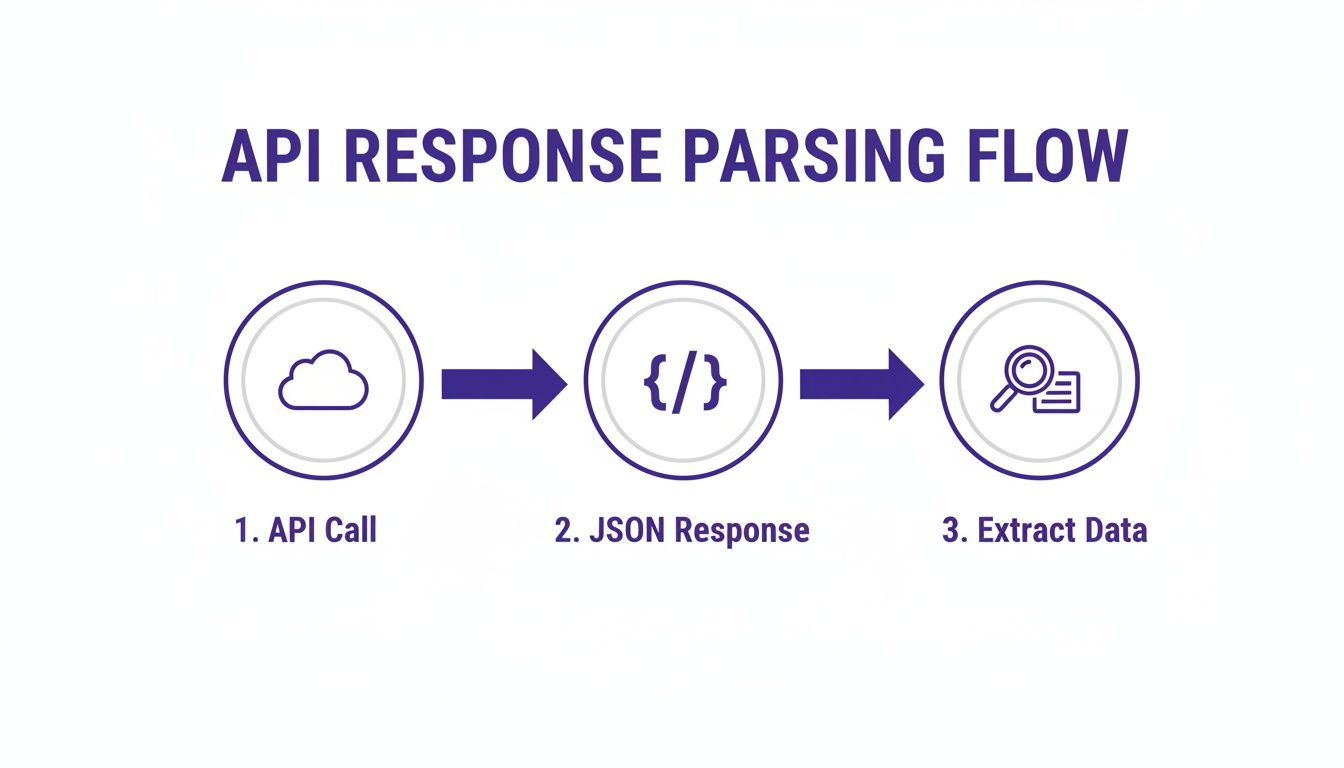
As you can see, the process is straightforward: the API call returns structured data, which becomes the raw material for your automated analysis.
Using the Results to Make a Call
The combined output gives a fact-checker a clear, comprehensive report. For instance, if the Bing API finds the exact same image published five years ago in a totally different context, it gets flagged immediately. Or, if the AI detector comes back saying it's 98% likely AI-generated, the image is debunked on the spot.
This is what makes modern verification work. It’s not just about finding a picture; it’s about understanding its entire digital footprint and its structural integrity—instantly.
When you're thinking about how the Bing Images Search API can fit into your broader AI projects, getting a handle on the fundamentals of What is AI Automation? can help you connect the dots for building these kinds of sophisticated systems. At the end of the day, this integration gives you a fast, scalable, and dependable way to stop visual misinformation in its tracks.
Getting the Most Out of the API: Best Practices for Performance and Analytics
To really make your Bing Images Search API integration shine, you need to think beyond just the basic request-response cycle. A few smart strategies for performance, cost management, and analytics can make a world of difference, ensuring your application is both fast and responsible. Over time, these simple habits can dramatically cut down on latency and your operational budget.
One of the most effective techniques is caching responses. Think about it: how many times will your app search for the same company logo or a generic object? Instead of hitting the API every single time for these repetitive queries, you can store the results temporarily. This lets you serve subsequent requests straight from your cache, which is a huge win for both speed and your wallet.
Fine-Tuning Your API Calls
Be specific. It's a simple rule that pays dividends. You can minimize the amount of data you're pulling over the wire by being precise with your query parameters. For instance, if you only need ten images for a small preview gallery, just set count=10. There's no point in fetching the default number of results if you're just going to throw most of them away. Smaller JSON responses mean faster processing. Simple as that.
Pro Tip: Always play by the rules. Make sure you're following the API's terms of service, which means respecting rate limits and giving proper attribution to Bing when it's required. Using the API responsibly is the best way to ensure your access never gets cut off.
If you want to brush up on general principles that apply to any API project, taking a look at some basic API documentation best practices can offer some really helpful context.
Using Azure for Analytics and Monitoring
The Microsoft Azure portal is essentially your mission control for API usage. It's packed with crucial metrics that give you a clear picture of how your integration is performing, letting you optimize your setup and catch potential problems before they become serious.
You’ll want to keep an eye on a few key data points:
- Call Volume: This is your direct line to cost management. Track your total number of requests over different time periods to stay on budget.
- Top Queries: See what your users are actually searching for. This is fantastic for spotting trends and understanding user intent.
- Market Distribution: Get a sense of where your API calls are coming from geographically.
- Response Code Summaries: This is your early warning system. Quickly identify and diagnose issues like authentication failures (401s) or other errors.
These analytics aren't just nice-to-haves; they're essential. As applications become more visual, some platforms handle millions of queries. Microsoft offers these insights to help developers get a handle on usage patterns, which is especially critical for high-volume systems like an automated content moderation service.
Frequently Asked Questions
Got a question about the Bing Images Search API? You're probably not the first to ask. Here are some quick answers to the most common questions we see from developers.
What's the Difference Between Bing Search v7 and Older Versions?
The big difference is consolidation. The current Bing Search v7 API is a one-stop-shop that bundles Web, Image, News, and Video search into a single API, accessible with just one subscription key.
Older versions, on the other hand, treated each search type as a separate service. That meant juggling different keys and hitting different endpoints for each one. V7 simplifies everything, which is why it's the only version you should be using for new projects. If you're still on an older version, we strongly recommend migrating.
How Can I Do a Reverse Image Search with the API?
You can absolutely do a reverse image search, but it's a two-step process using an image insights token.
First, you run a normal image search for any term. The response you get back will contain a list of image objects, and each one has a unique imageInsightsToken.
Then, you take that token and make a second call to the /images/details endpoint, passing the token in the insightsToken parameter. The API will then return a rich set of details and visually similar images, giving you a powerful reverse search capability.
What Are the Usage Restrictions and Content Policies?
When you use the Bing Images Search API, you're agreeing to follow the Microsoft Azure Acceptable Use Policy and the specific terms for Cognitive Services. This is standard stuff—don't use the API for illegal things, spam, or invading people's privacy.
A key requirement you can't overlook is attribution. You must display attribution to Bing somewhere in your app's UI. The exact requirements can change, so always check the official Microsoft documentation to make sure you're compliant. It’s all about creating a transparent and trustworthy experience for everyone.
Ready to build automated workflows that can spot AI-generated images? The AI Image Detector API integrates seamlessly with search results to provide an extra layer of verification, ensuring the authenticity of visual content at scale. Get started with our API today.