

Upload Image And Get Answer AI Free In Minutes

Ever needed to verify an image in a flash? Just drag your JPEG, PNG, or GIF onto the page, click Analyze, and you’ll see a clear confidence score in seconds. No registration required—and nothing you upload is ever stored.
Key Features
- Drag-and-Drop Interface for effortless uploads
- Instant Preview to fine-tune your image before analysis
- Privacy-First Operation—no files are retained or shared
Quick Overview Of Upload Image And Get Answer AI Free
Quick Step Comparison
Below is a snapshot of how the workflow unfolds from start to finish:
Quick Step Comparison
| Phase | Action | Outcome |
|---|---|---|
| File Selection | Choose JPEG, PNG, GIF | Instant validation |
| Drag & Drop | Release or click pane | Live preview and edit |
| AI Analysis | Hit Analyze button | Confidence score and verdict |
This simple sequence gets you from upload to insight in just a few clicks.
“Even when I ran ambiguous shots, the confidence score helped me decide whether to re-shoot or proceed.”
Growth Trends
By early 2025, monthly uploads had climbed into the tens of millions, fueled by AI chatbots and image generators. To explore which platforms topped the list, see Neoworlder Insights on AI Image Generators.
Understanding Supported Formats And Privacy Guarantees
Start by confirming your image is in JPEG, PNG, or GIF. Free accounts accept files up to 5 MB and resolutions up to 4 K.
- JPEG is perfect for rich photographs
- PNG shines when you need transparent backgrounds
- GIF handles short animations smoothly
Every upload travels over an encrypted connection and vanishes the moment it’s analyzed. We don’t keep your files around—period.
“No file leaves your browser longer than needed”—that’s our no-storage promise.
Designers sharing banner mockups and support teams diagnosing visual issues rely on this safeguard. Verifying compatibility takes just a few seconds:
- Open your browser console to check MIME type and file size
- Upload a quick test image to view the encrypted transfer report
By 2025, 57 % of marketing teams said AI image generation cut their campaign timelines in half, and brands using AI visuals saw 23 % higher engagement. For the full breakdown, explore these trends in detail.
Explore AI Image Generation Statistics
Check our guide on verifying image metadata
Using Drag And Drop To Upload Images
Uploading your photo couldn’t be more straightforward. Just drag your file onto the upload panel or click to browse, and you’re off and running. Within moments, a live preview appears—perfect for cropping or fine-tuning your image before analysis. If you make a mistake, hitting Ctrl+Z will instantly undo your last action.
Here’s a handy infographic that walks you through supported formats, file-size limits, and how the system keeps everything secure during validation:
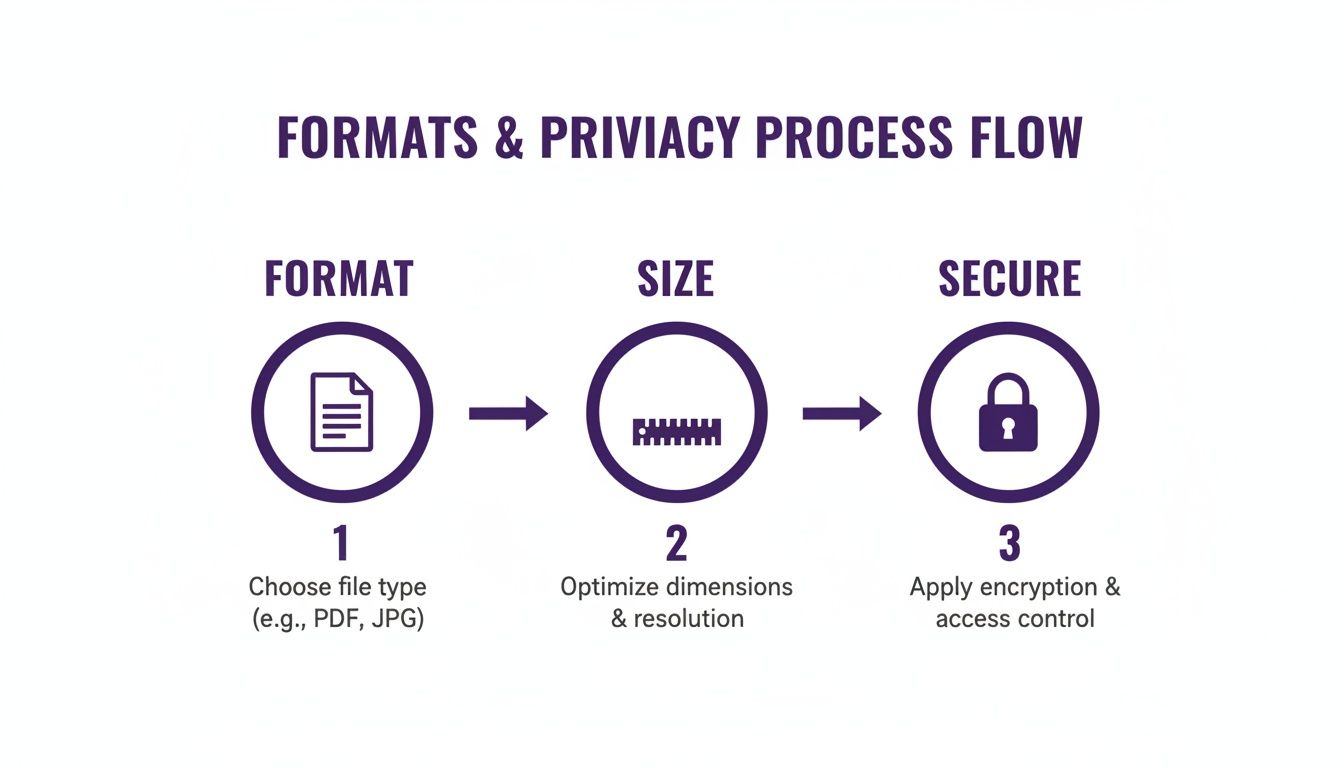
Key Highlights:
- Supported Formats: JPG, PNG, GIF
- Maximum File Size: 10 MB
- Security: In-memory processing with instant format and size checks
Interface Overview
Take a closer look at the upload panel:
- Clearly labeled drag-and-drop area
- Real-time confidence meter updating as your image loads
- Immediate warnings if an unsupported format or oversized file is detected
Rest easy knowing no images are ever stored on our servers—everything runs in your browser’s memory, ensuring complete privacy.
Interpreting Confidence Scores And Handling Ambiguity
When you drop an image into the detector, you’ll see a confidence score pop up almost instantly. These percentages aren’t random—they’re hints about how much you can trust the result. Getting familiar with what each range means helps you decide whether to act right away or give it another pass.
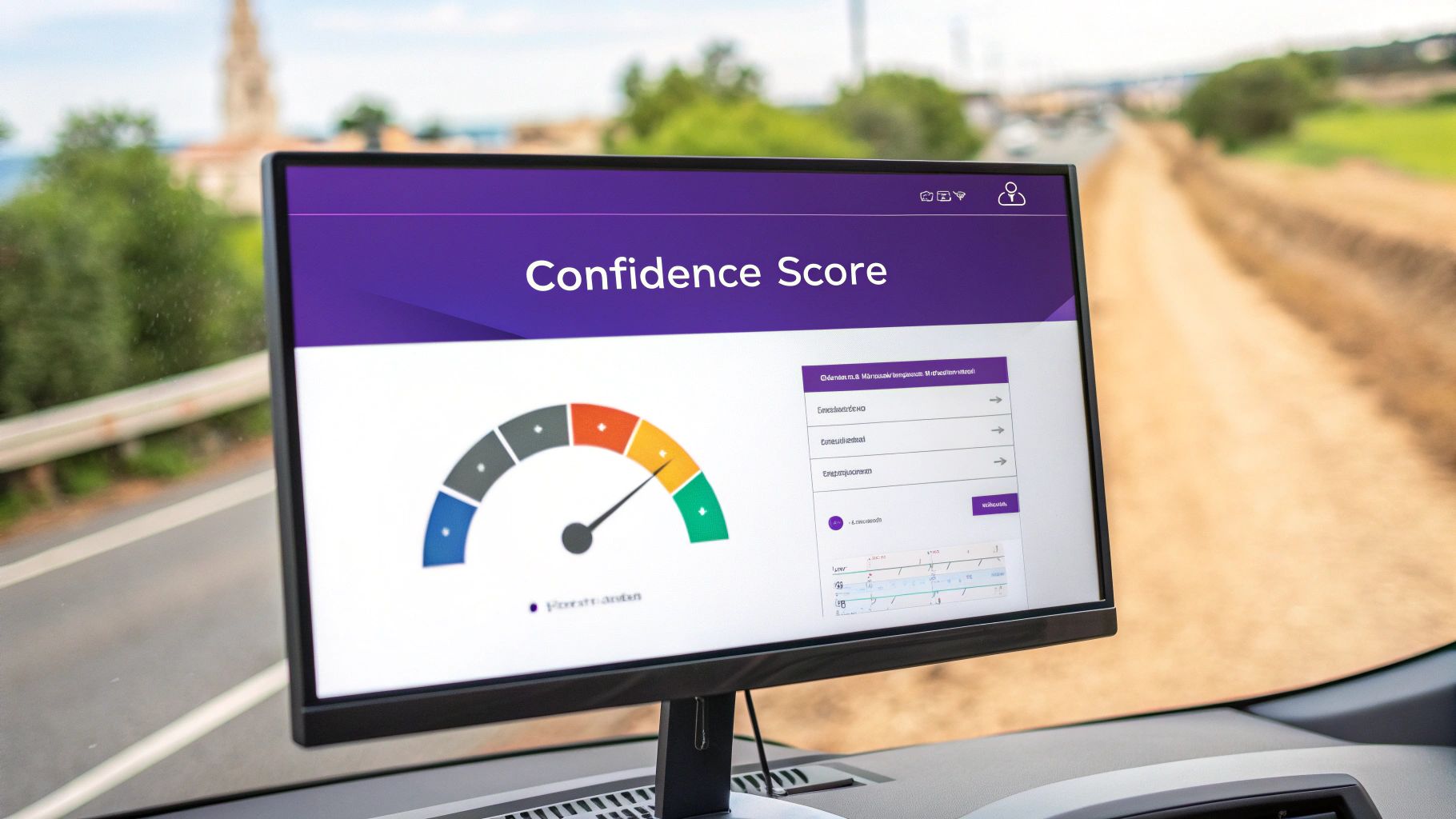
Understanding Confidence Levels
Here’s a quick breakdown of what the numbers usually indicate:
- 80%+: Clear-cut cases. The AI is quite certain here.
- 50%–80%: Mixed signals. You’ll get valuable clues but should double-check.
- Below 50%: High uncertainty. Best to tweak the image or flag for review.
Agents re-upload edge-case snaps, adjust lighting, then compare across tries.
A support-desk team we work with sends anything under 60% straight to human review—and that small change lifted their overall accuracy by 12%.
Practical Tips For Handling Ambiguous Results
Over the years, I’ve found a few tricks that tend to nudge scores in the right direction:
- Adjust your lighting: Soft shadows often help the detector pick out details.
- Simplify backgrounds: A clean backdrop prevents distractions.
- Re-upload and compare: Run the same image three times to spot consistent trends.
- Keep a quick log: Note what tweaks gave you the best jump in confidence.
Tracking these tweaks side by side makes it easy to see what really moves the needle.
Learn more about advanced image insights in our article on AI analysis of images
Unlocking Advanced Features And API Integration
After signing up for a free account, you’ll notice your daily limit for image checks grows significantly. On top of that, you gain access to custom presets, which let you fine-tune sensitivity settings and save them for later. This is perfect when you’re juggling different types of content or running multiple review rounds.
Custom Preset Benefits:
- Sensitivity Control: Toggle between low, medium, and high review modes instantly.
- Saved Profiles: Keep your most-used configurations handy and avoid starting from scratch.
- Task Labels: Organize presets by project—think “social media scan” or “compliance check.”
API Integration Example
Automating your uploads through the API can really accelerate routine checks, especially in marketing dashboards or content pipelines. To illustrate, here are a few snippets drawn from real-world setups:
- A Python script that POSTs images to the detection endpoint and parses out the confidence_score from the JSON response.
- A JavaScript fetch demo that streams results live into a web dashboard, giving teams instant feedback.
- For text-heavy images, check out our image-to-text tutorial for a step-by-step conversion guide.
- You can even build a Slack bot (Slack) to handle image queries and push results back into your channel.
- Prefer Microsoft Teams? Embed a lightweight bot (Microsoft Teams) for visual QA without leaving your chat workspace.
Frequently Asked Questions
What File Types Are Supported?
We accept JPEG, PNG, and GIF files up to 5MB.
How Is My Privacy Protected?
Uploads are secured with encryption in transit. Processing happens in memory only, then no trace is left behind.
What Do Confidence Scores Mean?
- 80% and Above: results you can trust
- 50–80%: take a second look
- Below 50%: try a clearer image
Why Isn’t My Upload Going Through?
- Make sure your file type is supported and under 5MB
- Clear your browser cache and reload the page
- Disable any ad blockers or network filters
Every image is analyzed on the fly and then immediately discarded—your privacy is our priority.
Experience clear, timely image verification with AI Image Detector. Try it free at AI Image Detector